Setup & Configuration
Before you add the SDK to your app, prepare the keys in Positive User and connect your Firebase project. These steps are the same for Android, iOS and Flutter, except where marked.
Prerequisites
- An active Positive User workspace
- A Firebase project for your mobile app
- Admin access to both
1. Generate a Mobile SDK key
- Log in to Positive User.
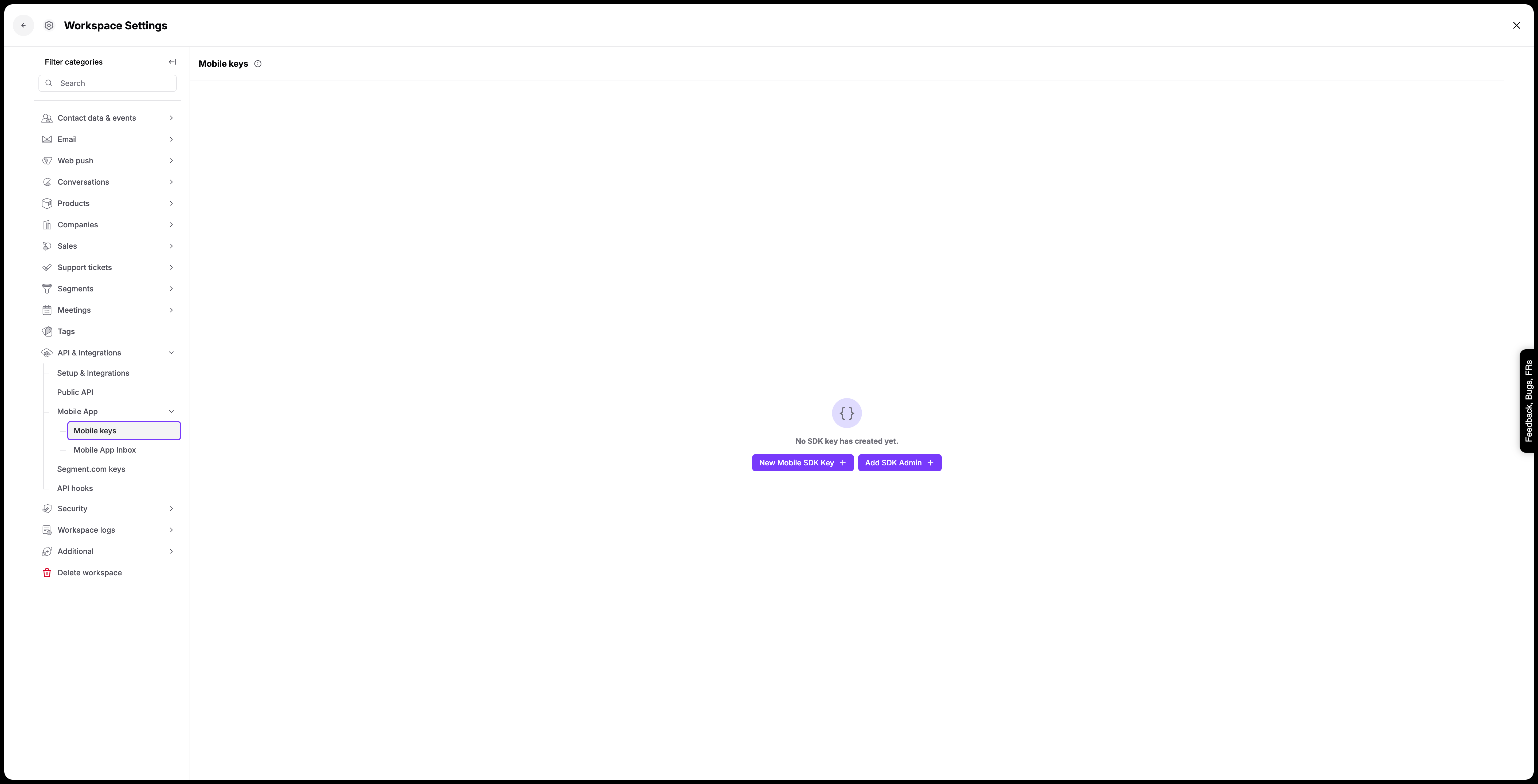
- Go to Workspace Settings → API & Integrations → Mobile App, at
https://<your-workspace>.user.com/v3/settings/api-and-integrations/mobile-app/overview. - Click New Mobile SDK Key.
tip
A valid Mobile SDK key is 64 characters long.
Mobile SDK key and REST API key
The SDK authenticates with a Mobile SDK key. It is a separate key type from the REST API key:
| Mobile SDK key | REST API key | |
|---|---|---|
| Used by | The mobile SDKs in your app | Your servers calling the REST API |
| Where to create it | API & Integrations → Mobile App | API & Integrations → Public API, at /v3/settings/api-and-integrations/public-api/ |
| Shipped in your app | Yes, it is meant to be embedded in the app | No, keep it on your servers |
A REST API key passed to the SDK is rejected with HTTP 401, and the SDK creates no contact.
2. Upload your Firebase service account key
This lets Positive User send push notifications and in-app messages through your Firebase project.
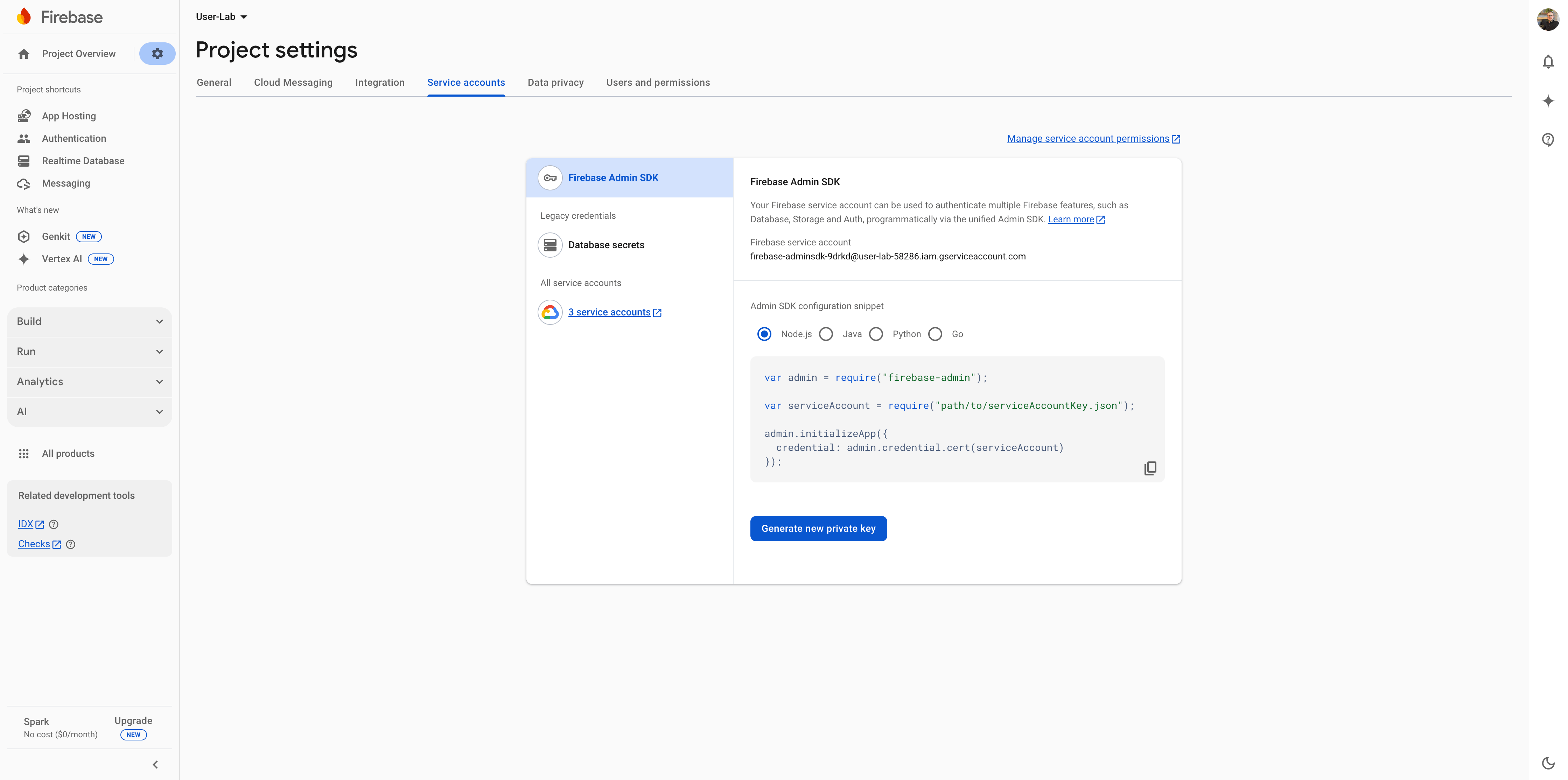
- Open Firebase Console and select your project.
- Go to Project settings → Service accounts.
- Click Generate new private key and confirm. This downloads a JSON file.
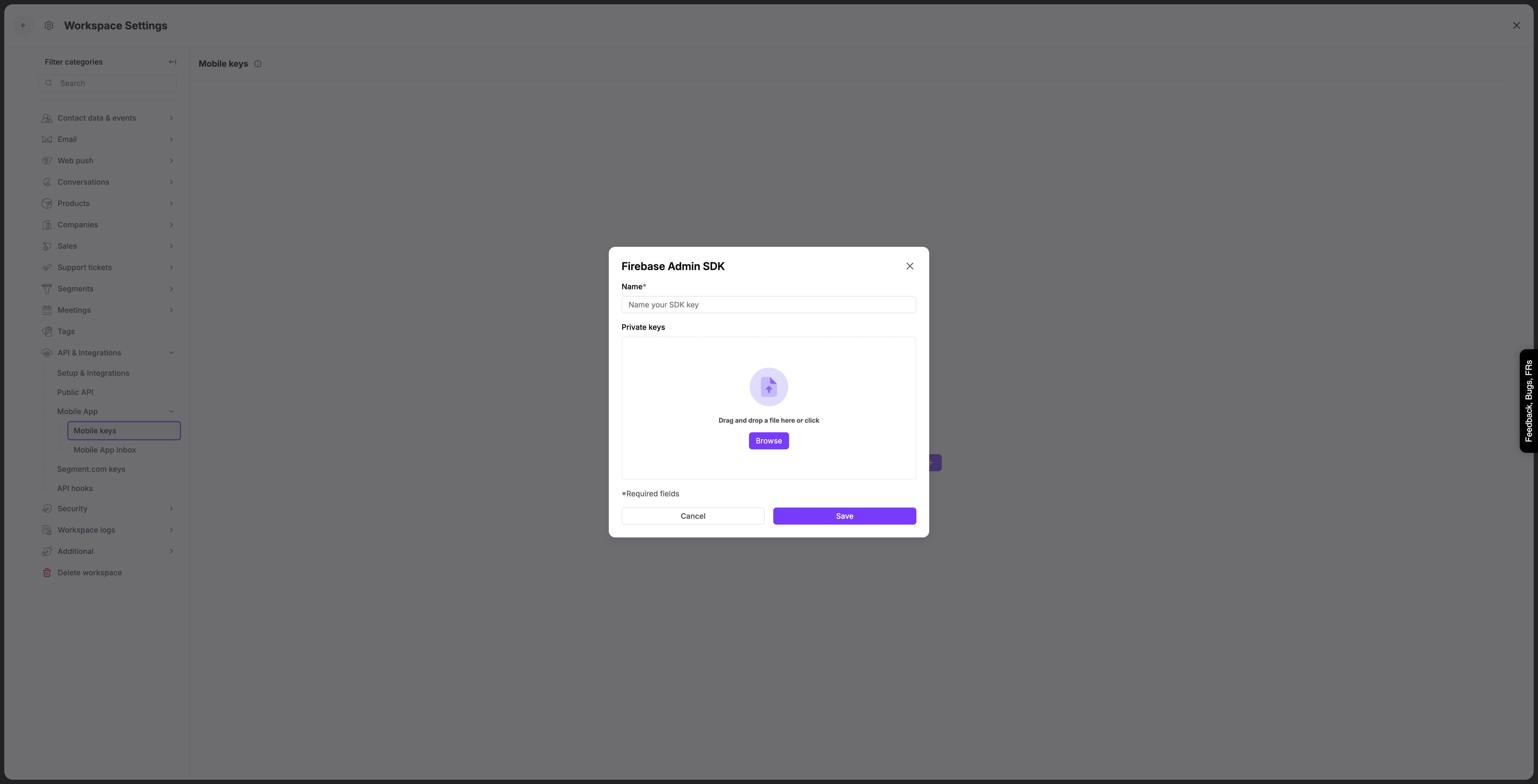
- In Positive User, go to Workspace Settings → API & Integrations → Mobile App.
- Click Add SDK Admin, name the key and upload the JSON file.
warning
Use the Firebase project that your app uses: the one in google-services.json (Android) and GoogleService-Info.plist (iOS). A key from another project makes every delivery fail.
3. Get your workspace domain and key
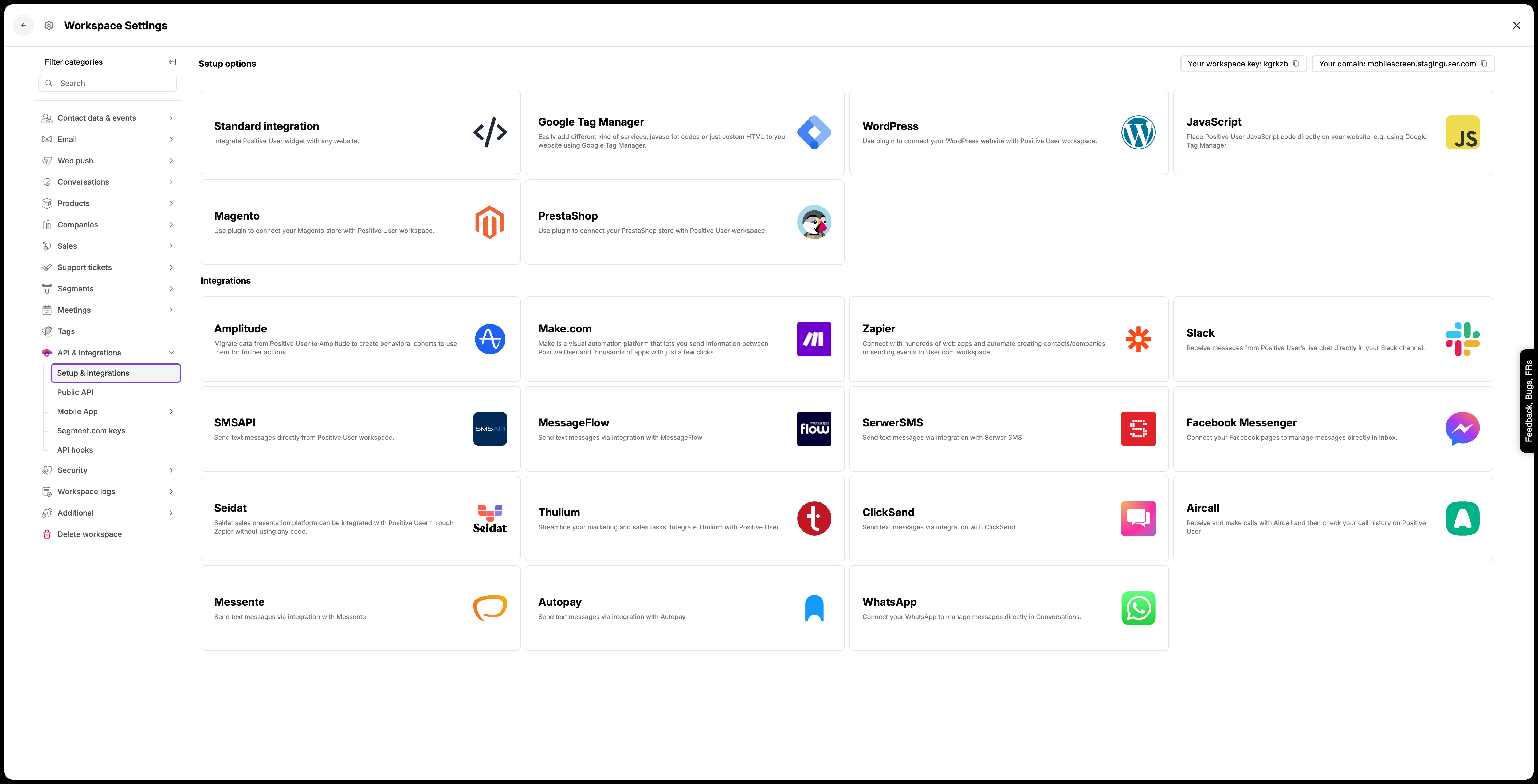
- Go to Workspace Settings → API & Integrations → Setup & Integrations, at
https://<your-workspace>.user.com/v3/settings/api-and-integrations/setup-integrations/. - Copy the Workspace Domain, for example
your-domain.user.com. All SDKs need it. - For Android, also copy the Workspace Key. The Android SDK needs it next to the Mobile SDK key.